On this page
User's Manual
A complete reference for using RevenueRegister day to day.
Daily Cash Register tasks
Here is how you manage cash with RevenueRegister. We'll cover each of these in the following steps.
 This opens your drawer and starts accepting cash transactions.
 Refund customer in cash with
 Record moving cash to safe or for bank deposit with
 Record petty cash uses with
 Count the cash in your drawer and finalize your shift.
How to Start your Shift
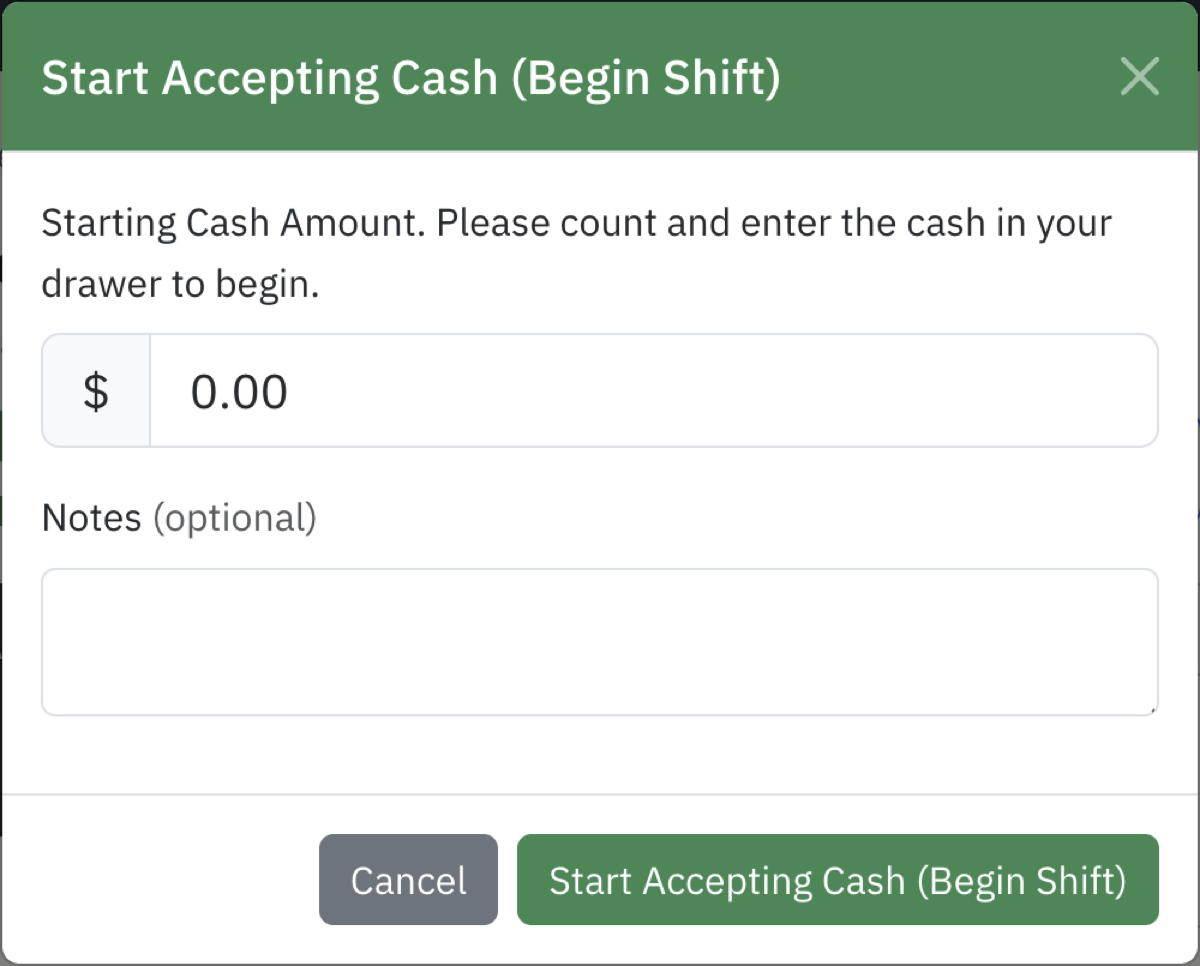
Tap on
Count the cash that's in the drawer and enter it into the dialog. If you have any notes you want to enter about shift open, enter them.
What are Payments, Adjustments, and Refunds?
A Payment is when you receive cash for a product or service. It's counted as Revenue.
A Refund is when you provide a cash refund back to a customer. It reduces Revenue.
An Adjustment is when you use or move cash for non-revenue purposes. Adjustments don't affect the Revenue count. Examples include:
- Moving cash to the safe
- Depositing cash in the bank
- Using "petty cash", like buying office supplies or paying the window cleaner
How to record a customer cash payment
If a customer pays for a product or service in cash, you need to record it.
Tap on the button. This brings up the Enter Cash Payment dialog:
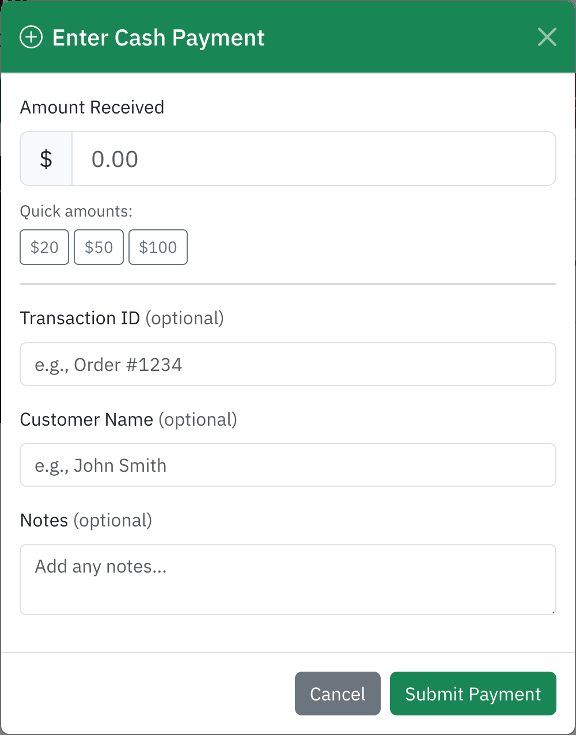
Note: your dialog may differ slightly from this one.
- Enter the Amount Received. You can also tap one of the Quick Amounts to make entry simpler.
- If available, enter the Transaction ID, Customer Name, and/or Notes.
- Tap Submit Payment to record the payment.
How to record a customer cash refund
If you issue refunds with cash, you need to record it.
Tap on the button. This brings up the Enter Refund dialog:
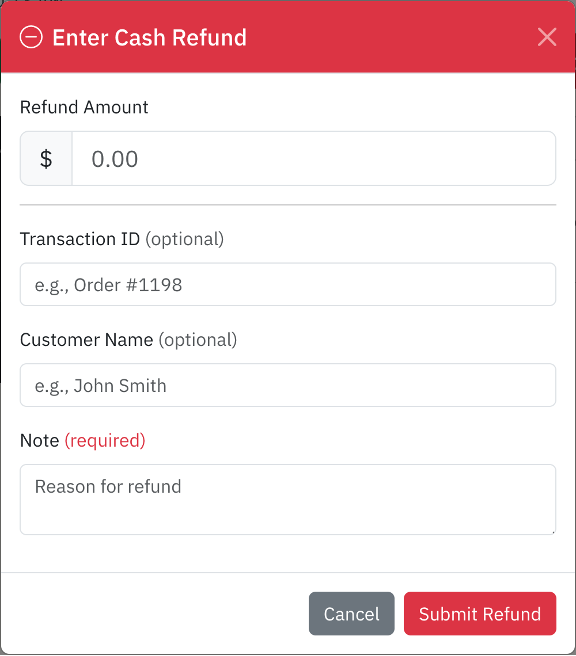
Note: your dialog may differ slightly from this one.
- Enter the Refund Amount.
- If available, enter the Transaction ID, Customer Name, and/or Notes.
- Tap Submit Refund to record the refund.
How to record moving cash to a safe
There are two ways to do this.
If the drawer is open and the shift is already started
Tap on the button. This brings up the Enter Adjustment dialog:
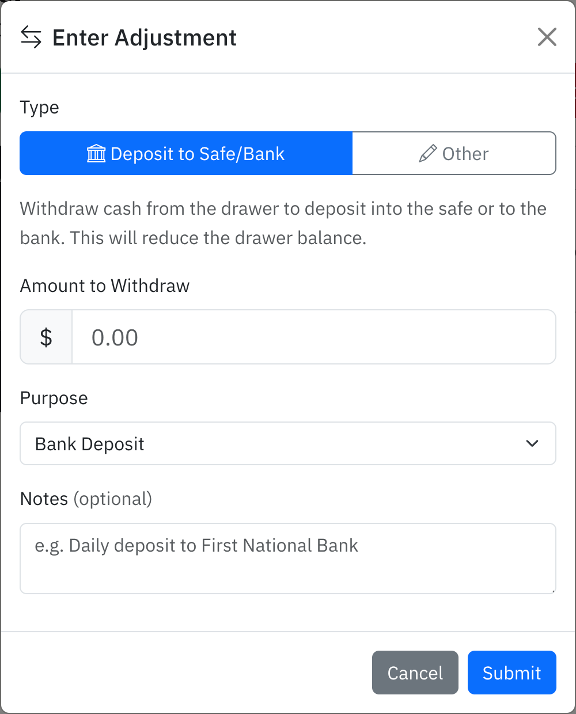
- Enter the amount that will be transferred to the safe.
- In the Purpose dropdown, select Transfer to Safe.
- Enter any notes about this transfer.
- Tap Submit to record the transfer.
If the drawer is closed and the shift is ended
Tap on the  button. This brings up the Deposit to Safe/Bank dialog:
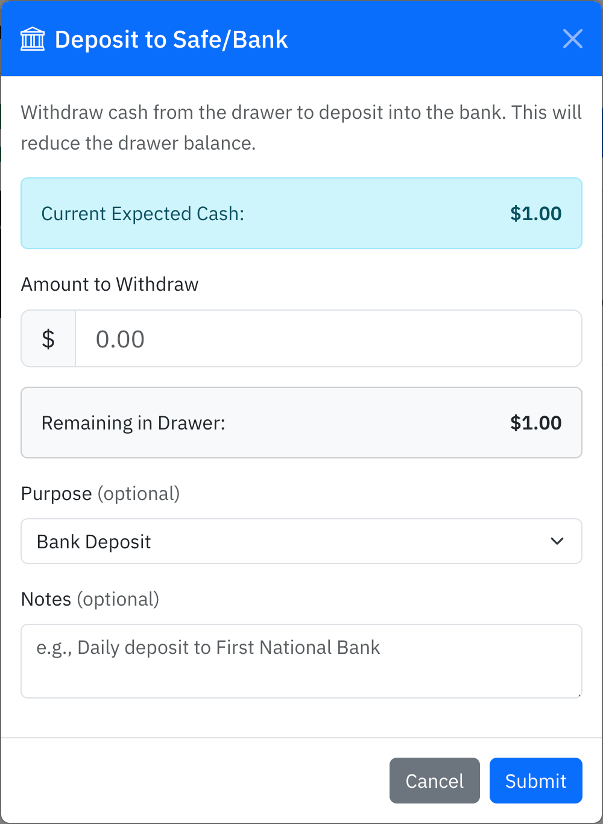
- Enter the amount that will be transferred to the safe.
- In the Purpose dropdown, select Transfer to Safe.
- Enter any notes about this transfer.
- Tap Submit to record the transfer.
How to record depositing cash to a bank
There are two ways to do this.
If the drawer is open and the shift is already started
Tap on the button. This brings up the Enter Adjustment dialog:
- Enter the amount that will be deposited at the bank.
- In the Purpose dropdown, select Bank Deposit.
- Enter any notes about this transfer.
- Tap Submit to record the transfer.
If the drawer is closed and the shift is ended
Tap on the button. This brings up the Deposit to Safe/Bank dialog:
- Enter the amount that will be deposited at the bank.
- In the Purpose dropdown, select Bank Deposit.
- Enter any notes about this transfer.
- Tap Submit to record the transfer.
How to record petty cash transactions
If you spend cash as petty cash, you need to record the transaction.
Tap on the button. This brings up the Enter Adjustment dialog.
Tap on the Other tab:
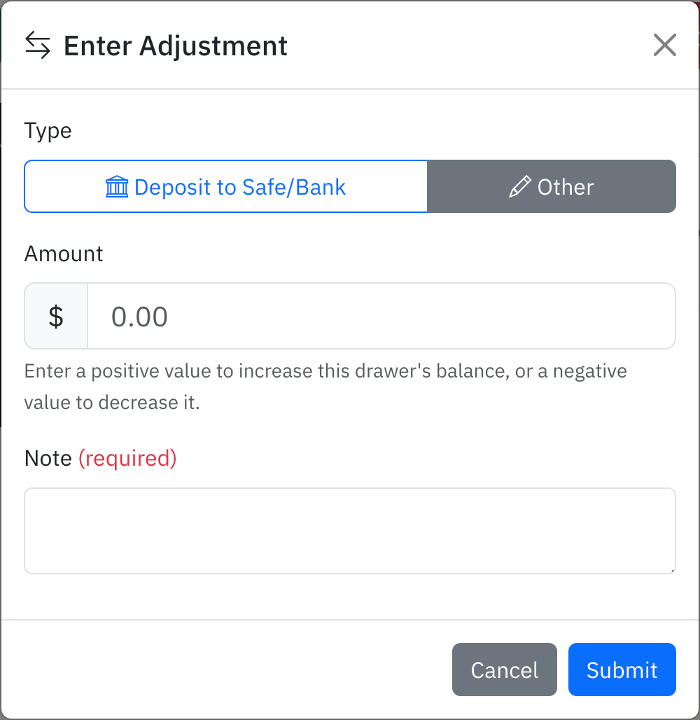
- Enter the adjustment Amount.
- Enter the Note for what this adjustment is. This is required.
- Tap Submit to record the adjustment.
How to End your Shift and stop accepting cash
Ending your shift is very important. When you End your Shift, this finalizes transactions that occurred during your shift and calculates Daily Revenue correctly. A critical part of ending your shift is counting the cash in your drawer, to ensure it matches what the system thinks should be there.
Tap on .
Choose how you would like to count your cash: with the Count Bills calculator, or by entering the total manually.
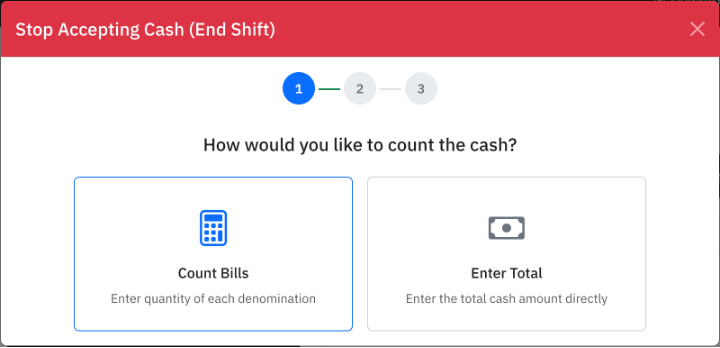
Once you've counted your cash, enter it into the dialog. Count carefully! If the numbers don't match what the system has recorded, you will need to enter Notes on why they don't match.
Tap "Stop Accepting Cash (End Shift)", and you are done.
Daily Revenue tasks
RevenueRegister doesn't end with cash. The Daily Revenue feature gives businesses everything they need to capture daily revenue from all sources. They use it as both an audit tool and a simple revenue tracking worksheet with the same controls.
To use Daily Revenue:
- Tap on Daily Revenue in the left sidebar.
-
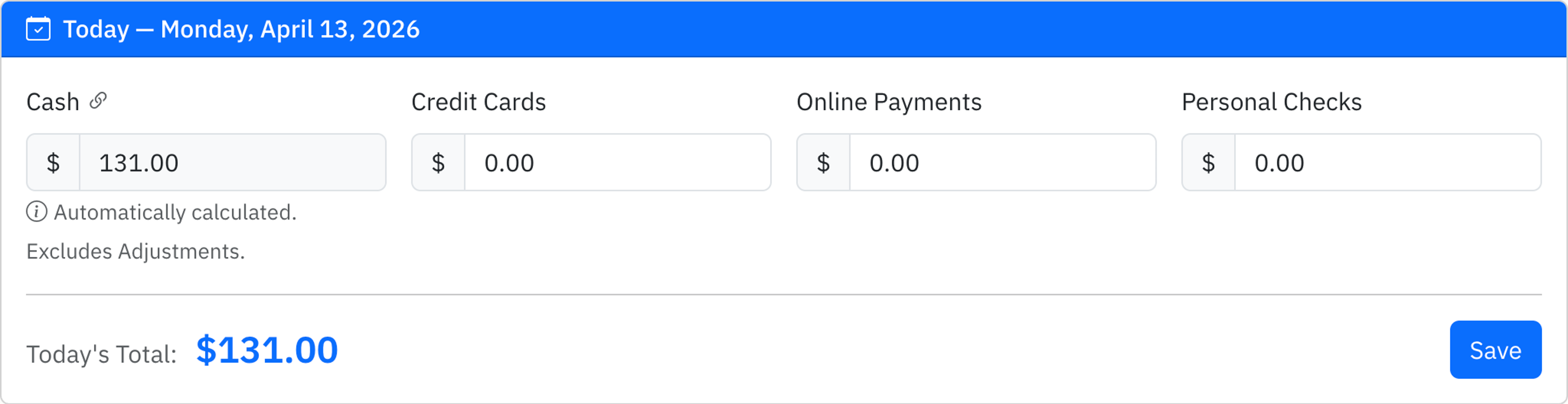
Enter the values from your daily revenue sources. This is an example of what Daily Revenue may look like:
- Tap Save.
If you need to change the list of sources, they are configurable by your organization's administrator in Settings.
The value in the "Cash" column comes directly from the Cash Register entries that you entered as part of Daily Cash Register tasks.